


Psst, lo tenemos en español
Puedes leer este artículo en español haciendo clic en el botón de abajo.
Common Errors Explained
Getting an "Unable to Activate eSIM" error?
This is completely normal. It happens when you install your eSIM before arriving at your destination - the eSIM installs fine in the background, but can't activate until you're in the destination country. You'll be connected automatically when you land so you can leave it as is.
Getting an "eSIM Cannot be Added" error?
This is also normal, as it means you have actually already installed your eSIM. Once installed, eSIMs cannot be installed again on the same device or onto a different device. To find your eSIM, go to Settings > Mobile (or Cellular) and check the SIMs section for your travel eSIM. It is usually the one at the bottom, but please contact us if you need help.
Common symptoms
- Internet not loading or extremely slow speeds
- Only "E" (Edge) showing instead of 4G, LTE or 5G
- No internet connection despite the eSIM showing as connected
Do not delete the eSIM from your phone. Follow the steps below or contact us if you need help.
Troubleshooting steps
1. Check you're in the service area
Your eSIM only works in its designated destination - a USA eSIM won't connect in Europe, and so on. If you're using a regional eSIM (e.g. Europe), make sure your specific country is covered.
2. Enable data roaming and set mobile data
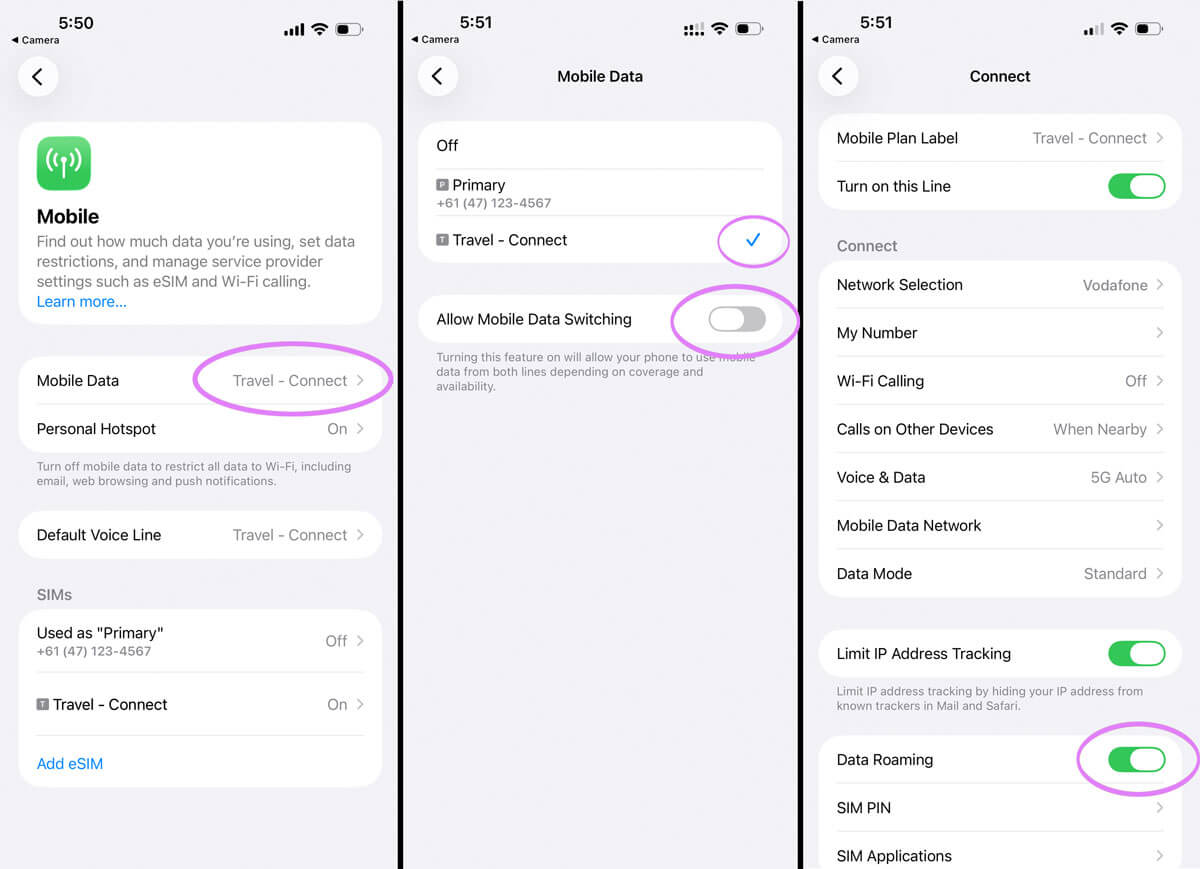
This is the most common fix.
- Go to Settings > Mobile (or Cellular)
- Tap Mobile Data and select your eSIM - it may be labelled "Secondary", "Personal" or "Travel"
- Tap into the eSIM and make sure Data Roaming is ON
- Toggle flight mode on, wait 30 seconds, turn it off
3. Reset the connection
If the above settings are all correct then often we can reset the connection using airplane mode if you have not done this already.
- Enable Airplane Mode
- Wait 30 seconds
- Turn it off
Allow up to 15 minutes for the eSIM to authenticate when first arriving in a new country.
4. Manually select a network
If the above does not work, sometimes telling the eSIM which network to use can solve the connectivity issue.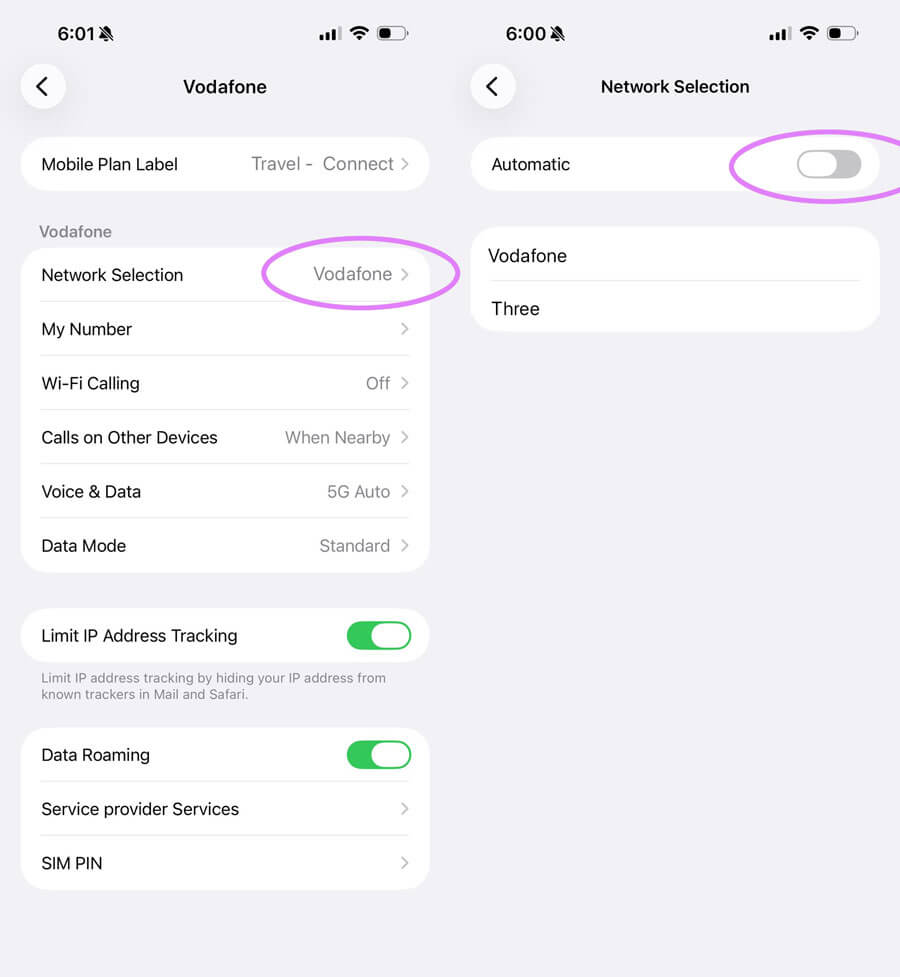
- Go to Settings > Mobile (or Cellular) > select your eSIM
- Tap Network Selection and turn off Automatic
- Wait for the network list to load, then select a network. Multiple networks are available - if one doesn't connect, try another.
- Toggle flight mode on, wait 30 seconds, turn it off
- Once connected, toggle Automatic back on
If you're using a regional eSIM (like Europe or Asia) we recommend turning Automatic back on once you manage to get a connection or if you leave to a new country.
5. Turn off any VPN or Parental Control
If you're using a VPN, Parental control or any sort of blocking technology - please disable that as it could interfere with the connection.
Still not working?
Contact us and we'll get you sorted as soon as possible (usually within a few hours). In rare cases there may be no service in the area or a network outage beyond our control, sometimes we may need to replace your eSIM, but we'll do everything we can to get you connected.

Suscríbete
Únete a nuestra comunidad
Te contactaremos cuando lancemos nuevos productos, proyectos de sostenibilidad, promociones, innovaciones o incluso contenido interesante que creemos que vale la pena compartir contigo.


